Creating a business website on WordPress isn’t just about choosing an attractive theme and filling pages with content. To truly succeed online, you need to master WordPress UX design tips that transform casual visitors into engaged customers. User experience (UX) and user interface (UI) design are critical factors that determine whether your website converts visitors or sends them running to competitors.
In this comprehensive guide, we’ll explore proven WordPress UX design tips that help you build websites that are intuitive, fast, and conversion-focused. Whether you’re a CTO evaluating your current site or a business owner planning a redesign, these strategies will help you create a digital presence that delivers results.
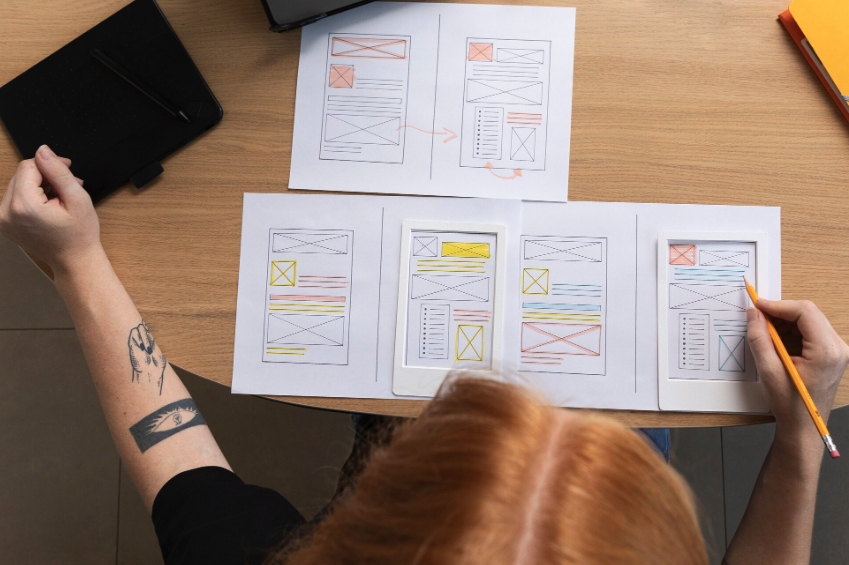
Why UX/UI Design Matters for WordPress Business Websites
Before diving into specific techniques, it’s essential to understand why UX/UI design should be a top priority:
- First impressions are formed in 0.05 seconds – Users judge your credibility instantly based on visual design
- 88% of online users won’t return after a bad user experience
- Well-designed interfaces can increase conversion rates by up to 200%
- Mobile traffic accounts for over 60% of web traffic, making responsive design non-negotiable
Poor UX design costs businesses money through lost opportunities, while exceptional design creates competitive advantages that drive revenue growth.
Essential WordPress UX Design Tips for Navigation
Navigation is the backbone of user experience. If visitors can’t find what they’re looking for within seconds, they’ll leave.
Implement Clear Menu Structures
Your WordPress navigation should follow these principles:
- Limit primary menu items to 5-7 options – Too many choices create decision paralysis
- Use descriptive labels – „Services” is better than clever terms like „What We Do”
- Add mega menus for complex sites – Great for e-commerce or service-heavy businesses
- Include a sticky header – Keeps navigation accessible as users scroll
- Add breadcrumbs – Help users understand their location within your site hierarchy
Create Intuitive User Flows
Map out the customer journey before building pages. Ask yourself:
- What action do you want users to take on each page?
- How many clicks does it take to complete key tasks?
- Are conversion paths clear and obstacle-free?
Example: A software house website should allow visitors to move from Homepage → Services → Case Study → Contact Form in three clicks maximum.
Speed Optimization: Critical WordPress UX Design Tips
Page speed directly impacts both user experience and SEO rankings. Google’s research shows that as page load time increases from 1 to 5 seconds, bounce probability increases by 90%.
Implement These Speed Optimization Techniques
- Choose lightweight, performance-focused themes (Astra, GeneratePress, Kadence)
- Use a caching plugin (WP Rocket, W3 Total Cache)
- Optimize images before uploading – Compress to WebP format
- Minimize HTTP requests – Reduce plugins and external scripts
- Enable lazy loading for images and videos
- Use a Content Delivery Network (CDN) like Cloudflare
- Keep WordPress, themes, and plugins updated
Mobile-First Design: Non-Negotiable WordPress UX Design Tips
With mobile-first indexing, Google primarily uses the mobile version of your site for ranking. Your WordPress UX design tips must prioritize mobile users.
Key Mobile UX Principles
- Responsive design is mandatory – Test on multiple devices and screen sizes
- Touch-friendly buttons – Minimum 44×44 pixels for tap targets
- Readable font sizes – At least 16px for body text on mobile
- Simplified mobile navigation – Hamburger menus or bottom navigation bars
- Eliminate horizontal scrolling – All content should fit within viewport width
- Optimize forms for mobile – Use appropriate input types and minimize required fields
Case Study: After implementing mobile-first redesign, a B2B SaaS company saw mobile conversion rates increase by 127% and mobile bounce rates decrease by 34%.
Accessibility: WordPress UX Design Tips for Inclusive Websites
Accessibility isn’t just ethical—it’s also good business. Approximately 16% of the global population has some form of disability.
Make Your WordPress Site Accessible
- Use semantic HTML structure – Proper heading hierarchy (H1 → H2 → H3)
- Add alt text to all images – Describe images for screen readers
- Ensure sufficient color contrast – WCAG AA standard requires 4.5:1 ratio for text
- Enable keyboard navigation – All functions should work without a mouse
- Use ARIA labels where necessary
- Install accessibility plugins like WP Accessibility or Accessibility Checker
Web Content Accessibility Guidelines (WCAG) provide comprehensive standards for creating accessible digital experiences.
(Internal Link Suggestion: „Web Accessibility Compliance: A Guide for Business Websites”)
Visual Hierarchy and Content Presentation
How you present information dramatically affects comprehension and engagement. These WordPress UX design tips focus on visual communication:
Create Clear Visual Hierarchy
- Use size, color, and spacing to establish importance
- Implement the F-pattern or Z-pattern for content layout
- Add whitespace generously – Don’t cram content
- Use high-quality images and graphics – Invest in professional photography or illustrations
- Maintain consistent styling – Colors, fonts, button styles throughout
Optimize Content Readability
- Break text into short paragraphs (3-4 lines maximum)
- Use subheadings every 200-300 words
- Add bullet points and numbered lists for scannable content
- Bold important phrases (sparingly)
- Use a readable font – Sans-serif fonts like Open Sans or Roboto work well
- Set appropriate line height – 1.5 to 1.8 for body text
Conversion-Focused Design Elements
Your WordPress website should guide users toward desired actions. Apply these WordPress UX design tips to boost conversions:
Strategic Call-to-Action (CTA) Placement
- Above the fold CTAs for immediate visibility
- Contrasting button colors that stand out from the design
- Action-oriented copy – „Get Your Free Consultation” vs. „Submit”
- Multiple CTAs throughout long pages – Don’t make users scroll back up
- Exit-intent popups (used sparingly and with value propositions)
Trust-Building Elements
- Client testimonials and reviews with photos and company names
- Case studies showcasing measurable results
- Security badges and certifications
- Clear privacy policy and GDPR compliance
- Team photos and bios – Put faces to your brand
Example: Adding client logos and a testimonial carousel to a service page increased form submissions by 43% for a consulting firm.
Form Design and User Input Optimization
Forms are critical conversion points but often create friction. Optimize them with these tips:
- Request only essential information – Every additional field reduces completion rates by 5-10%
- Use single-column layouts – Easier to complete than multi-column forms
- Add inline validation – Immediate feedback prevents submission errors
- Include progress indicators for multi-step forms
- Auto-format inputs – Phone numbers, credit cards, dates
- Provide helpful error messages – Specific guidance, not generic warnings
(Internal Link Suggestion: „Contact Form Best Practices for Lead Generation”)
Testing and Continuous Improvement
Great UX design isn’t a one-time project—it’s an ongoing process of refinement.
Implement These Testing Methods
- A/B testing – Test headlines, CTAs, layouts, colors
- Heatmap analysis – Use tools like Hotjar or Crazy Egg to see where users click and scroll
- User session recordings – Watch how real users navigate your site
- Usability testing – Have real users complete tasks while thinking aloud
- Analytics review – Monitor bounce rates, time on page, conversion funnels
- Feedback surveys – Ask users directly about their experience
Key Metrics to Monitor
- Bounce rate by page
- Average session duration
- Pages per session
- Conversion rate by traffic source
- Form abandonment rate
- Mobile vs. desktop performance differences
WordPress Tools and Plugins for Better UX
Leverage these tools to implement WordPress UX design tips more effectively:
Page Builders:
- Elementor Pro
- Beaver Builder
- Divi Builder
Speed Optimization:
- WP Rocket
- Imagify or ShortPixel
- Asset CleanUp
User Experience:
- WPForms (user-friendly forms)
- MonsterInsights (Google Analytics integration)
- Schema Pro (structured data for better search results)
Accessibility:
- WP Accessibility Helper
- Accessibility Checker
Conclusion: Transform Your Business Website with WordPress UX Design Tips
Implementing these WordPress UX design tips will transform your business website from a digital brochure into a powerful conversion engine. Remember that great UX design focuses on your users’ needs, removes friction from their journey, and guides them naturally toward desired actions.
The most successful WordPress business websites combine aesthetic appeal with functional excellence. They load quickly, work flawlessly on all devices, provide intuitive navigation, and create trust through thoughtful design choices.
Ready to elevate your WordPress website’s user experience? Our team of UX/UI specialists and WordPress developers can audit your current site and implement data-driven improvements that increase conversions. Contact us today for a free consultation and discover how strategic UX design can transform your digital presence.